
If your terminal is properly registered but the shopping cart appears in the upper left, transactions won’t load, or order data is missing, the issue is usually related to your device’s clock or cached browser data. The steps below resolve most display and loading problems.
Step 1: check your computer’s clockMake sure your terminal’s date and time are accurate. Incorrect system time can prevent the pos from loading order information correctly.
Step 2: clear site data using browser tools- Right‑click anywhere in the pos
- Click inspect
- Go to application → storage → clear site data
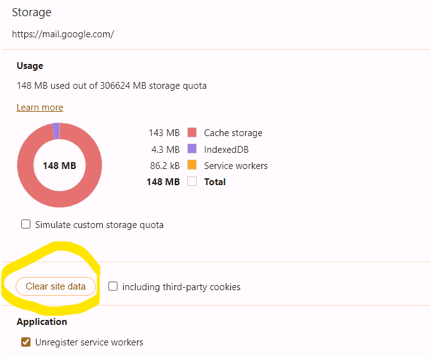
This clears cached data that may be preventing the pos from loading correctly.
Alternative method: empty cache and hard reload- Right‑click anywhere in the pos
- Click inspect
- Right‑click the reload icon next to the url
- Select empty cache and hard reload
This forces the browser to reload all pos files fresh from the server.
SummaryIf your terminal is registered but not displaying order information:
- Verify your computer’s clock
- Clear site data
- Perform an empty cache and hard reload
These steps resolve most loading and display issues.