---
title: How do I Update Sales Tax Rates when New Tax Rate is issued by my state?
description: edit tax rates
---
[Skip to content](https://help.hightrekpos.com/kb/how-to-update-sales-tax-rates-when-new-tax-rate-is-issued#main-content)
English - United States
Show submenu for translations
[](https://www.hightrekpos.com)
Open main navigation
Close main navigation
- English - United States
Show submenu for translations
- [Contact us](https://www.hightrekpos.com/contact-us.html#contact-form)
[Contact us](https://www.hightrekpos.com/contact-us.html#contact-form)
How can we help you?
- There are no suggestions because the search field is empty.
1. [High Trek POS Platform Knowledge Base](https://help.hightrekpos.com/kb?hsLang=en-us)
2. [FAQs](https://help.hightrekpos.com/kb/faqs?hsLang=en-us)
July 23, 2026
# How do I Update Sales Tax Rates when New Tax Rate is issued by my state?
## How to edit sales tax rates on your products
If you receive a new updated tax rate from your state and need to make an update to your tax rate, please use the following steps to acomplish this.
1\. Create a new Tax Rate Record. Admin Tools \> Accounting \>Tax Rates \> Add Tax Rate. Enter Name, Description, New Tax Rate, and select the appropriate Tax Liability Account.
2\. Update All the Products to the New Tax Rate. In order to do this you must use the "Bulk Change Tax Rates" Button.
1. Note: The old tax rates must be marked active in order for you to update them. Do not mark the old tax rate inactive until you have replaced them.
2. Select the old tax rate in the Current Tax Rate dropdown and then select the new tax rate in the next dropdown and hit "Update"
3. Example below: This will update all tax rates including split taxes.
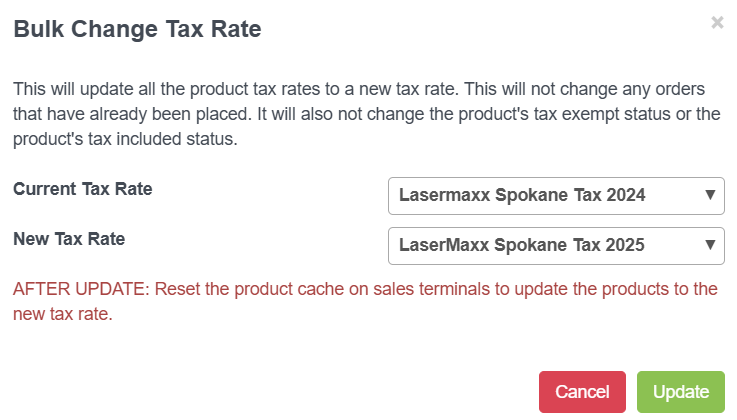
The products will now be all updated and start charging the appropriate tax rate.
3\. Finally to see the updated values in the shopping cart on your POS we need to rebuild the Cache. Go to Settings \> Rebuild Cache.
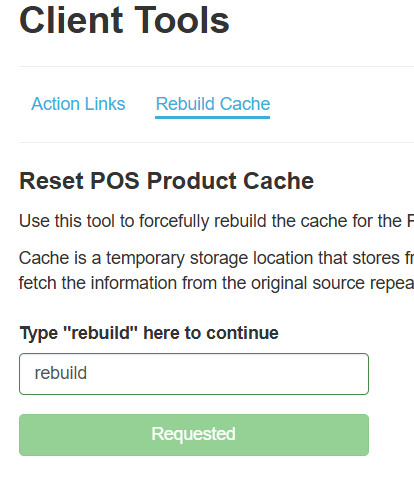
Once that is done you should be able to update your cart cache and be set.
- [FAQs](https://help.hightrekpos.com/kb/faqs?hsLang=en-us)
- [Getting started](https://help.hightrekpos.com/kb/getting-started?hsLang=en-us#main-content)
- [Operating Hours](https://help.hightrekpos.com/kb/getting-started?hsLang=en-us#operating-hours)
- [Products](https://help.hightrekpos.com/kb/getting-started?hsLang=en-us#products)
- [Inventory](https://help.hightrekpos.com/kb/getting-started?hsLang=en-us#inventory)
- [Zoos](https://help.hightrekpos.com/kb/getting-started?hsLang=en-us#zoos)
- [Vouchers](https://help.hightrekpos.com/kb/getting-started?hsLang=en-us#vouchers)
- [PCI](https://help.hightrekpos.com/kb/getting-started?hsLang=en-us#pci)
- [Resources](https://help.hightrekpos.com/kb/getting-started?hsLang=en-us#resources)
- [Custom Calendar](https://help.hightrekpos.com/kb/getting-started?hsLang=en-us#custom-calendar)
- [Capacity](https://help.hightrekpos.com/kb/getting-started?hsLang=en-us#capacity)
- [Troubleshooting](https://help.hightrekpos.com/kb/troubleshooting?hsLang=en-us)
- [General](https://help.hightrekpos.com/kb/general?hsLang=en-us#main-content)
- [POS](https://help.hightrekpos.com/kb/general?hsLang=en-us#pos)
- [Reports](https://help.hightrekpos.com/kb/reports?hsLang=en-us)
- [Accounting](https://help.hightrekpos.com/kb/accounting?hsLang=en-us)
- [Hardware](https://help.hightrekpos.com/kb/hardware?hsLang=en-us)
- [Voucher Creation & Redemption](https://help.hightrekpos.com/kb/voucher-creation-redemption?hsLang=en-us)
- [Voucher Systems & Redemption Workflows](https://help.hightrekpos.com/kb/voucher-systems-redemption-workflows?hsLang=en-us)
- [POS Product Modifications & Add‑Ons](https://help.hightrekpos.com/kb/pos-product-modifications-add-ons?hsLang=en-us)
- [Physical Gift Card Production & Redemption](https://help.hightrekpos.com/kb/physical-gift-card-production-redemption?hsLang=en-us)
- [Bulk Voucher Management & Redemption](https://help.hightrekpos.com/kb/bulk-voucher-management-redemption?hsLang=en-us)
- [Payments & Cash Handling](https://help.hightrekpos.com/kb/payments-cash-handling?hsLang=en-us)
- [Product Setup & Configuration](https://help.hightrekpos.com/kb/product-setup-configuration?hsLang=en-us)
- [Reporting & Accounting](https://help.hightrekpos.com/kb/reporting-accounting?hsLang=en-us)
- [POS troubleshooting](https://help.hightrekpos.com/kb/pos-troubleshooting?hsLang=en-us)
- [Reporting & Data Export](https://help.hightrekpos.com/kb/reporting-data-export?hsLang=en-us)
- [POS Continuity & Outage Preparedness](https://help.hightrekpos.com/kb/pos-continuity-outage-preparedness?hsLang=en-us)
- [Location settings & configuration](https://help.hightrekpos.com/kb/location-settings-configuration?hsLang=en-us)
- [POS Permissions & Transactions](https://help.hightrekpos.com/kb/pos-permissions-transactions?hsLang=en-us)
- [Payments & Account Management](https://help.hightrekpos.com/kb/payments-account-management?hsLang=en-us)
- [Memberships & Customer Management](https://help.hightrekpos.com/kb/memberships-customer-management?hsLang=en-us)
- [Email templates & communication](https://help.hightrekpos.com/kb/email-templates-communication?hsLang=en-us)
- [Sales & Lead Management](https://help.hightrekpos.com/kb/sales-lead-management?hsLang=en-us)
- [Product Scheduling & Availability](https://help.hightrekpos.com/kb/product-scheduling-availability?hsLang=en-us)
- [Membership Management & Subscriptions](https://help.hightrekpos.com/kb/membership-management-subscriptions?hsLang=en-us)
[](https://help.hightrekpos.com/?hsLang=en-us)
[mailto:email@email.com](mailto:email@email.com)
Copyright © 2026, High Trek POS