---
title: How do I create and use branded physical gift cards w/High Trek POS?
description: Learn how to design, produce, activate, and redeem branded physical gift cards using High Trek POS, including code generation, vendor printing requirements, POS activation steps, and customer redemption workflows.
---
[Skip to content](https://help.hightrekpos.com/kb/how-do-i-create-and-use-branded-physical-gift-cards-w/high-trek-pos#main-content)
English - United States
Show submenu for translations
[](https://www.hightrekpos.com)
Open main navigation
Close main navigation
- English - United States
Show submenu for translations
- [Contact us](https://www.hightrekpos.com/contact-us.html#contact-form)
[Contact us](https://www.hightrekpos.com/contact-us.html#contact-form)
How can we help you?
- There are no suggestions because the search field is empty.
1. [High Trek POS Platform Knowledge Base](https://help.hightrekpos.com/kb?hsLang=en-us)
2. [Physical Gift Card Production & Redemption](https://help.hightrekpos.com/kb/physical-gift-card-production-redemption?hsLang=en-us)
August 7, 2026
# How do I create and use branded physical gift cards w/High Trek POS?
Creating and Using Branded Physical Gift Cards w/High Trek POSCard Production
1. ### Design Gift Card Creative
2. Design a Branded Front of the card.
3. Design a Card Back that has your desired terms and conditions on the back.
4. Provide Link to website.
5. Instructions to enter the code at time of checkout or present the card at venue location
6. Provide designated space for the dynamic QR code or Barcode to be printed
7. Provide space for the raw gift card code to be printed on the card.
8. ### Find a Vendor
9. Search for vendors on google: [https://www.google.com/search?q=print+physical+gift+cards](https://www.google.com/search?q=print+physical+gift+cards)
10. Some possible vendors, but really it is like business cards you can find many vendors and it comes down to price, volume, and production time.
11. Possible Vendors
12. [https://ecardsystems.com/ecard/?ecard=custom](https://ecardsystems.com/ecard/?ecard=custom)
13. [https://www.duracard.com/product/gift-cards/](https://www.duracard.com/product/gift-cards/)
14. Determine the qty you want to print and get a quote
15. Select a Vendor that can print an alpha numeric code on the back of the cards.
16. You will need to decide what type of scannable code that you want to use. We recommend QR Code since it is the easiest to scan if you have the appropriate hardware. Barcode would be second option.
17. You will need to specify that you need the code printed in Scannable form and the plain text version should also be printed on the card for customers to read and type into online checkout.
18. ### Generate a list of Random Codes to provide the vendor.
19. Use the following tool we have created to generate the number of random codes you require for the batch of cards. Change the number of characters value and the page should refresh. Gift Card Code Generator - [https://docs.google.com/spreadsheets/d/17dvzxsMly69vkPJTuyFSBuVdW7qooNYQGkN1mEly\_mc/edit?usp=sharing](https://docs.google.com/spreadsheets/d/17dvzxsMly69vkPJTuyFSBuVdW7qooNYQGkN1mEly_mc/edit?usp=sharing)
20. Select/Highlight the number of codes you need in Column A and B and Copy the values and paste into a text file or new Sheet. This sheet will be provided to the selected vendor for your production run.
21. ### Produce Cards
22. Provide specifications and the sheet of codes to the printer.
23. Place order.
Enabling Physical Cards
When you receive your cards they will have random codes and these will essentially be inactive cards that have no value and have not been activated. You still want to keep these cards secure and make sure no one is able to record the card numbers for future use.
To issue a card from the POS you must enable the Physical Gift Card capability.
Go to Settings \> More \> Gift Certificate Settings \> Enable Physical Gift Card Issuance \> Check the Box to enable \> Save

Issuing a Physical Gift Card
1. In the POS add a gift card product to the shopping cart.
2. Select Physical Gift Issuance from the Delivery Type Drop Down
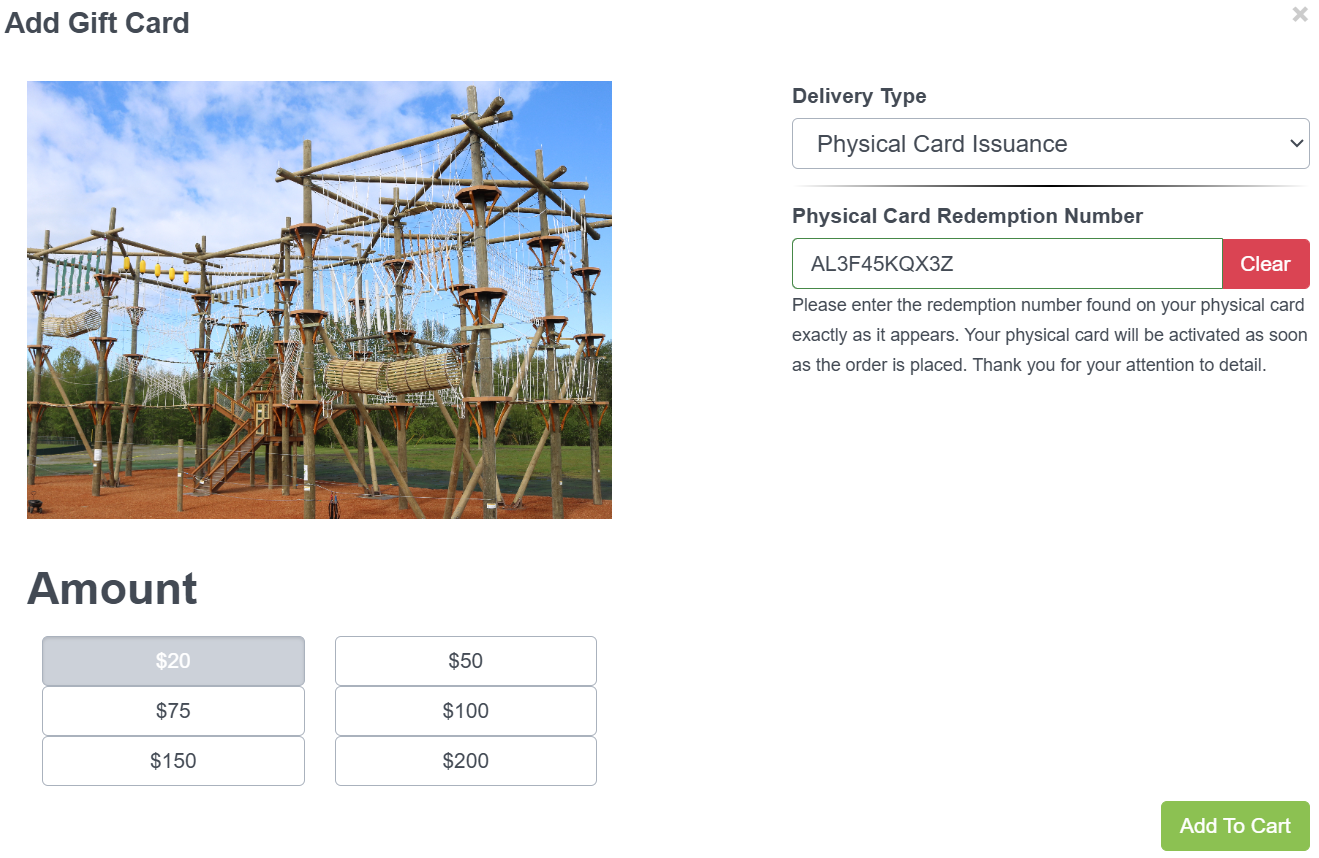
1. Click into the Physical Card Redemption textbox and then scan the card or type the code in on the card. Click Add to Cart.
2. Complete the checkout by selecting the customer you are selling the card to and collect the payment.
3. The card will not be activated until a successful payment is collected and the order is created. At that point the card and code on the card is loaded with the amount you specified for the card.
Redemption of Gift Cards
**Online:** Customers can redeem the gift card online by typing in the code to the Gift Card field on the final checkout page just like the case for an E-Gift Card.
**In Person Redemption:** This can be redeemed the normal way as well by clicking on Pay in the POS and then selecting the “Gift Card” payment option. The only difference is that you can click into the field and scan the card rather than manually entering the value.
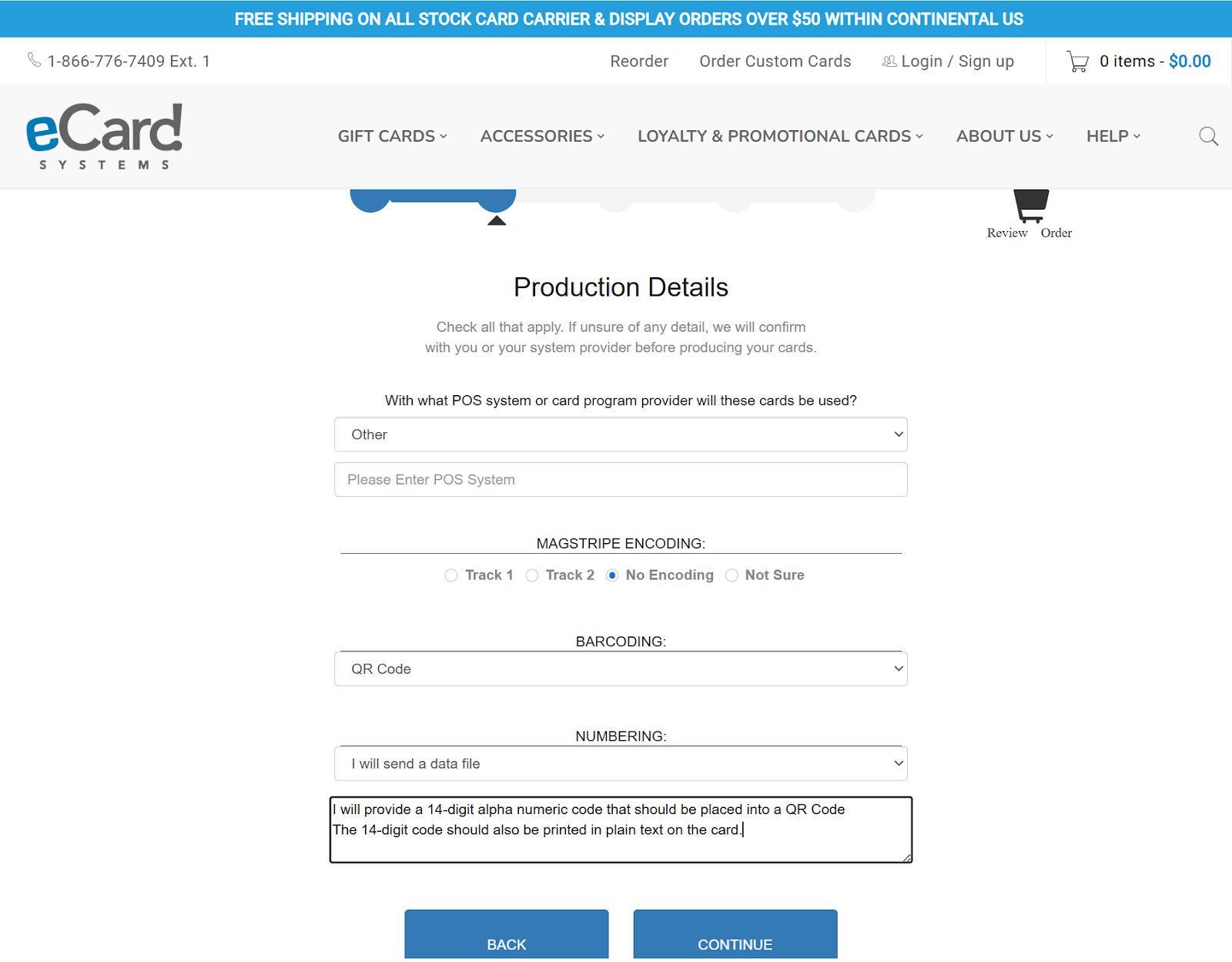
Example Vendor and Specifications
- [FAQs](https://help.hightrekpos.com/kb/faqs?hsLang=en-us)
- [Getting started](https://help.hightrekpos.com/kb/getting-started?hsLang=en-us#main-content)
- [Operating Hours](https://help.hightrekpos.com/kb/getting-started?hsLang=en-us#operating-hours)
- [Products](https://help.hightrekpos.com/kb/getting-started?hsLang=en-us#products)
- [Inventory](https://help.hightrekpos.com/kb/getting-started?hsLang=en-us#inventory)
- [Zoos](https://help.hightrekpos.com/kb/getting-started?hsLang=en-us#zoos)
- [Vouchers](https://help.hightrekpos.com/kb/getting-started?hsLang=en-us#vouchers)
- [PCI](https://help.hightrekpos.com/kb/getting-started?hsLang=en-us#pci)
- [Resources](https://help.hightrekpos.com/kb/getting-started?hsLang=en-us#resources)
- [Custom Calendar](https://help.hightrekpos.com/kb/getting-started?hsLang=en-us#custom-calendar)
- [Capacity](https://help.hightrekpos.com/kb/getting-started?hsLang=en-us#capacity)
- [Troubleshooting](https://help.hightrekpos.com/kb/troubleshooting?hsLang=en-us)
- [General](https://help.hightrekpos.com/kb/general?hsLang=en-us#main-content)
- [POS](https://help.hightrekpos.com/kb/general?hsLang=en-us#pos)
- [Reports](https://help.hightrekpos.com/kb/reports?hsLang=en-us)
- [Accounting](https://help.hightrekpos.com/kb/accounting?hsLang=en-us)
- [Hardware](https://help.hightrekpos.com/kb/hardware?hsLang=en-us)
- [Voucher Creation & Redemption](https://help.hightrekpos.com/kb/voucher-creation-redemption?hsLang=en-us)
- [Voucher Systems & Redemption Workflows](https://help.hightrekpos.com/kb/voucher-systems-redemption-workflows?hsLang=en-us)
- [POS Product Modifications & Add‑Ons](https://help.hightrekpos.com/kb/pos-product-modifications-add-ons?hsLang=en-us)
- [Physical Gift Card Production & Redemption](https://help.hightrekpos.com/kb/physical-gift-card-production-redemption?hsLang=en-us)
- [Bulk Voucher Management & Redemption](https://help.hightrekpos.com/kb/bulk-voucher-management-redemption?hsLang=en-us)
- [Payments & Cash Handling](https://help.hightrekpos.com/kb/payments-cash-handling?hsLang=en-us)
- [Product Setup & Configuration](https://help.hightrekpos.com/kb/product-setup-configuration?hsLang=en-us)
- [Reporting & Accounting](https://help.hightrekpos.com/kb/reporting-accounting?hsLang=en-us)
- [POS troubleshooting](https://help.hightrekpos.com/kb/pos-troubleshooting?hsLang=en-us)
- [Reporting & Data Export](https://help.hightrekpos.com/kb/reporting-data-export?hsLang=en-us)
- [POS Continuity & Outage Preparedness](https://help.hightrekpos.com/kb/pos-continuity-outage-preparedness?hsLang=en-us)
- [Location settings & configuration](https://help.hightrekpos.com/kb/location-settings-configuration?hsLang=en-us)
- [POS Permissions & Transactions](https://help.hightrekpos.com/kb/pos-permissions-transactions?hsLang=en-us)
- [Payments & Account Management](https://help.hightrekpos.com/kb/payments-account-management?hsLang=en-us)
- [Memberships & Customer Management](https://help.hightrekpos.com/kb/memberships-customer-management?hsLang=en-us)
- [Email templates & communication](https://help.hightrekpos.com/kb/email-templates-communication?hsLang=en-us)
- [Sales & Lead Management](https://help.hightrekpos.com/kb/sales-lead-management?hsLang=en-us)
- [Product Scheduling & Availability](https://help.hightrekpos.com/kb/product-scheduling-availability?hsLang=en-us)
- [Membership Management & Subscriptions](https://help.hightrekpos.com/kb/membership-management-subscriptions?hsLang=en-us)
[](https://help.hightrekpos.com/?hsLang=en-us)
[mailto:email@email.com](mailto:email@email.com)
Copyright © 2026, High Trek POS